A 10-Minute Remote Pairing Preflight Checklist for Smooth Screen Sharing
By Taylor
A 10-minute preflight to check permissions, network quality, and notification hygiene so remote pairing starts smooth every time.
The 10-minute remote pairing preflight
Remote pairing falls apart for three predictable reasons: permissions that weren’t granted until the last second, networks that can’t keep up with real-time collaboration, and “surprise” interruptions like notifications, MFA prompts, or password manager pop-ups showing up on a shared screen. The fix isn’t more process—it’s a short, repeatable preflight you can run before every session.
Below is a 10-minute checklist you can reuse for interviews, incident swarms, onboarding, or weekly pairing. It’s tool-agnostic, but if your team uses a purpose-built pairing app like tuple.app, several steps become faster because it’s designed around low-latency control, crisp audio, and privacy-first screen sharing.
Minute 0–2: Set the session boundaries
Confirm who is hosting and what will be shared
- Pick the host (the machine doing the screen share) based on where the code, credentials, and debugging tools already live.
- Decide the share scope: one monitor vs. one window. If you know you’ll need to jump between terminal, editor, and browser, sharing a full display can reduce friction. If you’ll be working in a single IDE, a single-window share lowers exposure risk.
- Agree on “hands on keyboard” rules: when the navigator can take control, how role swaps happen, and a quick verbal cue (“You drive” / “I’m taking over”).
Check for “sensitive by default” context
If you’re pairing in a production environment, doing a customer debugging call, or using real user data, treat the session as sensitive even if everyone is internal. If you need a more formal control set, it’s worth aligning with your team’s baseline in a security playbook like this remote pair programming security playbook.
Minute 2–5: Permissions and access with zero live troubleshooting
OS permissions that commonly block pairing
Most “we can’t control your screen” issues aren’t application bugs—they’re OS-level permissions that require an admin prompt or a restart. Before you connect:
- Screen recording / screen capture permission: required to share the display on modern macOS and Windows configurations.
- Accessibility / input control permission: required for remote control, keyboard/mouse injection, and some shortcut handling.
- Microphone permission: required for reliable audio without switching to a separate voice call.
Do a quick test: start a dummy call or preview, confirm the other person can see your screen, and request control once. If any permission prompts appear, fix them now—not while the other person is waiting.
Repo, environment, and secrets access
- Repo access: verify you can fetch, checkout, and run tests locally (or that your dev container/VM is available).
- Package registries: confirm you can install dependencies without re-authing mid-session.
- Cloud and internal tooling: open the console you’ll need (AWS/GCP/Azure, internal dashboards) and ensure you’re already logged in.
- MFA readiness: if you know an MFA step is coming, do it before sharing, or be explicit that you’ll pause sharing for it.
The goal is simple: no permission dialog should be the first time you discover you’re missing a right.
Minute 5–8: Network QoS quick check for low-latency pairing
Run the “feel test” first
For pairing, raw bandwidth matters less than stability. You’re looking for low jitter, minimal packet loss, and consistent latency. In practice, you can detect most issues with a 60-second “feel test”:
- Start sharing and scroll quickly in the editor, resize a window, and drag between monitors.
- Have the partner take control and type a few lines. Watch for delayed keystrokes or “rubber-banding” cursor movement.
- Say a few sentences and check for audio dropouts or aggressive noise suppression artifacts.
Do one fast technical check if things feel off
- Switch to wired Ethernet if available. Wi‑Fi is the most common jitter source.
- Pause big background transfers (cloud sync, OS updates, Docker pulls, large git LFS fetches).
- Pick the right resolution: if your connection is marginal, reduce share resolution or avoid sharing a 5K display unless you truly need it.
- Close high-CPU apps: if your laptop is thermal throttling, even a perfect network won’t feel snappy.
Tuple-style pairing tools are built to keep control and audio responsive even when conditions aren’t perfect, but no app can compensate for severe packet loss or a saturated upstream.
Minute 8–10: “No surprise pop-ups” hygiene
Notification and badge sweep
This is where most awkward moments happen. Before sharing:
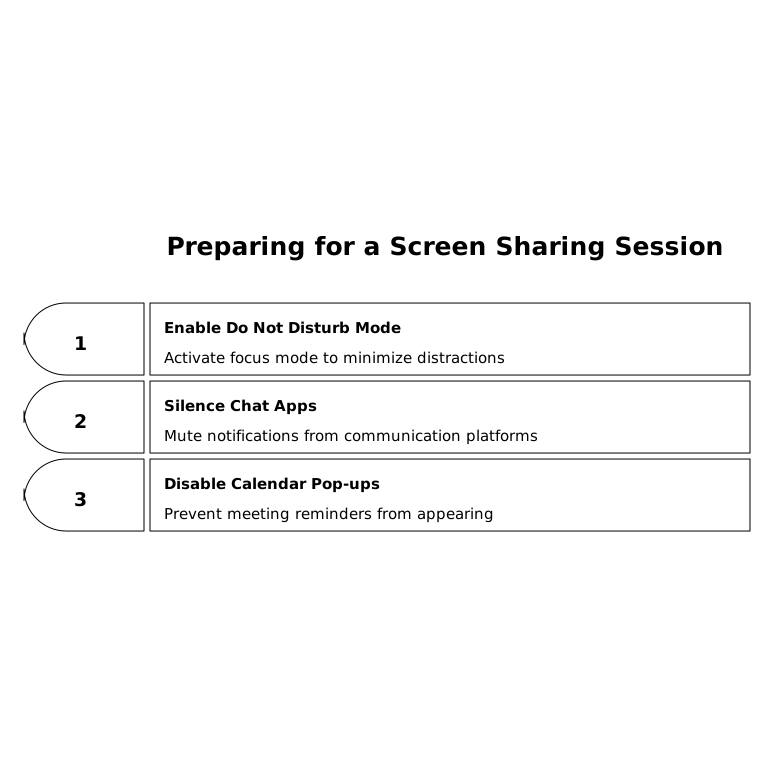
- Enable Do Not Disturb / Focus mode for the duration of the session.
- Silence chat apps (Slack, Teams, Discord) or move them to a non-shared monitor.
- Disable calendar pop-ups and meeting reminders that can appear mid-debugging.
Credential prompts and password managers
- Pre-auth to any service likely to prompt for login.
- Unlock your password manager before sharing, then minimize it. Consider turning off auto-fill suggestion pop-ups temporarily.
- Plan for screen pauses: agree on a phrase like “pausing share for auth” so it’s routine, not awkward.
Hide sensitive apps proactively
If you’re going to open terminals with production access, personal email, HR tools, billing dashboards, or customer PII, assume you will accidentally alt-tab at least once. Use a tool feature that hides selected apps and notifications before you share (Tuple’s App Veil is designed for this). It’s faster than trying to remember “don’t open that window” while you’re deep in a problem.
Make the checklist repeatable without turning it into process theater
Put the preflight in the calendar invite
Add a single line to the invite description: “Start share at :02 after preflight (permissions, QoS, notifications).” It sets expectations without adding a meeting about the meeting.
Use lightweight automation for the boring parts
If your pairing tool supports call-event automation, you can remove friction: auto-pause music, switch audio devices, set Focus mode, or add a Git co-author when the call starts. This is where APIs and triggers shine—not for novelty, but for reliability under time pressure.
Capture fixes as a team asset
When something breaks (a VPN rule, a macOS permission, a driver issue), write the fix down once and make it discoverable. A short internal doc with “symptom → fix” entries prevents the same 5-minute disruption from repeating every week.
The outcome you’re aiming for
A good preflight doesn’t feel like a ritual. It feels like you hit “start,” audio is clean, control is immediate, and nobody has to narrate troubleshooting. When permissions are handled, network quality is validated, and pop-ups are neutralized, remote pairing becomes what it’s supposed to be: two engineers thinking together, not two engineers fighting their tooling.
Frequently Asked Questions
How does Tuple help prevent interruptions during remote pairing?
Tuple includes features like App Veil to hide selected apps and notifications before sharing, reducing the chance of sensitive pop-ups appearing mid-session.
What permissions should I verify before starting a Tuple pairing session?
Confirm screen capture/screen recording, accessibility or input control for remote control, and microphone permissions—these are the most common blockers for smooth Tuple sessions.
What’s the fastest way to tell if my network is good enough for Tuple?
Do a 60-second feel test: scroll and resize windows while sharing, then let your partner take control and type. If you see delayed input or audio dropouts, switch to wired and pause background uploads.
Should we share a full monitor or a single window when using Tuple?
Use a single window when you want lower exposure risk and you can stay in one app. Share a full display when you’ll jump between editor, terminal, and browser frequently—just pair it with App Veil or strong notification hygiene.
How can we make the preflight repeatable without adding overhead in Tuple?
Add the checklist to the calendar invite and automate the boring parts using Tuple’s call-event triggers (for example, enabling Focus mode or pausing music when a call starts).