Use Your Calendar as a Queue to Auto‑Schedule Follow‑Ups and Waiting‑On Work
By Taylor
Turn follow-ups into scheduled calendar blocks so waiting-on work surfaces when it’s actionable—and never slips.
The problem with “waiting on” tasks
Most follow-ups don’t fail because you forgot them. They fail because they live in the wrong place.
A task manager is great for work you can do now. But “Waiting on Sam to reply,” “Follow up with vendor,” or “Check if invoice was paid” are different. They’re time-dependent, easily postponed, and they pile up quietly until they become urgent. The result is familiar: you scan a list, don’t know what to nudge today, and end up doing follow-ups in batches—usually late.
The “Calendar as a Queue” method fixes this by giving waiting-on work a predictable home: your calendar. Not as meetings, but as auto-scheduled time blocks that surface exactly when they’re actionable.
What “Calendar as a Queue” means
A queue is simple: items line up and are processed in order when capacity is available. Your calendar already behaves like that—time slots are the capacity, and events are the items. The shift is treating follow-ups and waiting-on tasks as scheduled prompts, not free-floating reminders.
Instead of keeping “Follow up with Alex” on a list and hoping you notice it, you place a 10-minute block on a specific day, at a specific time, where it competes fairly with everything else you say matters.
This works especially well in a single workspace that blends tasks and calendar so it’s easy to convert “waiting” into “scheduled.” That’s the natural fit for a tool like Routine, where time blocking and quick capture can live together without extra steps.
The core rule: every waiting-on item gets a next touch date
The method rests on one rule:
If you are waiting on something, you must also decide when you’ll touch it next.
Not when it’s due. Not when you “should” remember. A concrete next touch date and a small block of time to execute the nudge.
This turns vague uncertainty (“I’m waiting”) into a controlled loop (“I will check again on Thursday at 10:20”).
How to set it up in 15 minutes
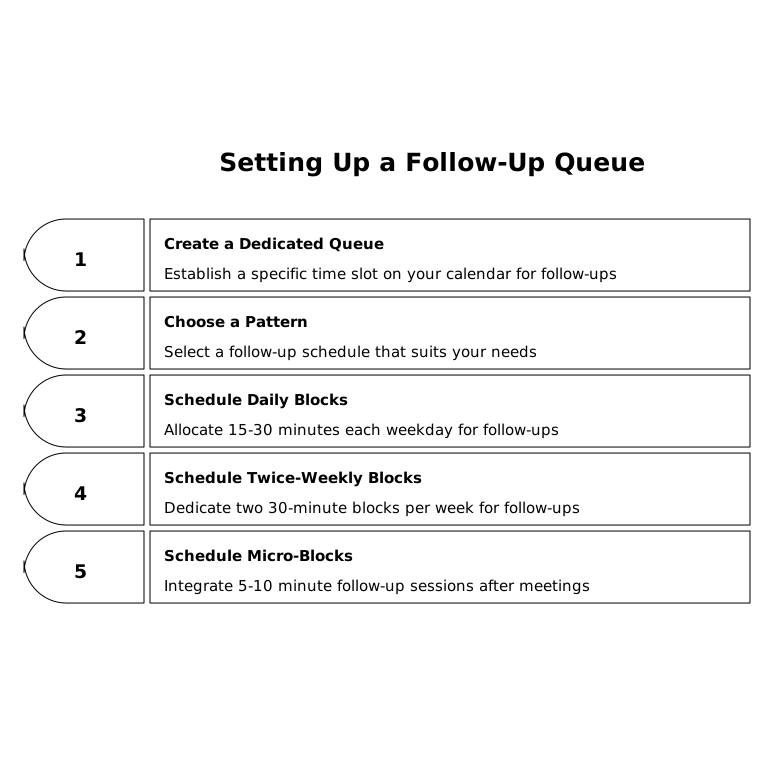
1) Create a dedicated follow-up queue on your calendar
Pick one of these patterns:
- Daily queue block: 15–30 minutes every weekday (best if you have lots of follow-ups).
- Twice-weekly queue block: two 30-minute blocks (best for lighter volume).
- Micro-blocks attached to events: 5–10 minutes right after specific meetings (best if follow-ups are meeting-driven).
If your follow-ups are scattered across sales, recruiting, partnerships, and internal approvals, the daily queue block is the most stable starting point.
2) Standardize a naming format that reads like a command
A queue only works if each item is instantly understandable when it pops up. Use a format like:
- “FU: Alex re contract redlines”
- “Nudge: invoice #1842 paid?”
- “Check: vendor shipped replacement part”
Avoid titles like “Follow up” with no object. Your future self shouldn’t have to open notes to know what to do.
3) Make the time block small on purpose
Most nudges take 2–6 minutes. If you schedule 30-minute blocks for each one, you’ll resist scheduling them at all. Keep most follow-up items at 5–10 minutes, and reserve longer blocks only when the follow-up includes real work (e.g., “review updated proposal”).
4) Put “waiting state” in the description, not your brain
In the event or task notes, store the minimal context that prevents re-reading threads:
- What you’re waiting on
- Last touch date
- Next message you’ll send (draft line)
- Link to the thread / doc
This is where a unified workspace helps: meeting notes, quick captures, and the scheduled follow-up can stay connected instead of being split across apps.
The workflow: capture → schedule → process → reschedule or close
Capture
When you send an email, Slack, or form submission that requires a response, immediately capture a follow-up item. The trick is doing it while the context is fresh—right after hitting “send.”
Schedule
Choose the next touch date based on the receiver’s realistic response time:
- Internal teammate: 1–2 business days
- Customer/prospect: 2–5 business days depending on cycle
- Vendor/legal/finance: 3–7 business days (or match their SLA)
If you’re wrong, it’s fine—the system is built around rescheduling. The important part is that the follow-up enters the queue.
Process (during your queue block)
When the block appears, your job is to process items like a dispatcher, not like a perfectionist:
- Send the nudge
- Update the status in the notes
- Schedule the next touch date immediately if still waiting
- Close it if resolved
This keeps the queue moving and prevents “open loops” from living rent-free in your head.
Reschedule or close
Every item must end in one of two states:
- Closed (done or no longer relevant)
- Re-queued (new next touch date on the calendar)
No third state. If it’s still waiting, it must stay scheduled.
Two tactics that make the method stick
Use “soft holds” for uncertain next steps
Sometimes you’re waiting, but the timing is fuzzy (“sometime next week”). In that case, schedule a soft hold: a small block that says “Check status + decide next step.” If you get the response earlier, delete it. If not, you’ll still make a decision instead of drifting.
Pair follow-ups with cycle planning
If your week has a planning rhythm, your queue becomes more reliable. A simple weekly cadence helps you decide what gets nudged versus what gets escalated. This fits neatly with a lightweight approach like cycle planning without Scrum theater—where the goal is steady shipping and clear ownership, not more meetings.
Common failure modes and quick fixes
You over-schedule and start ignoring the calendar
Fix: convert many tiny follow-ups into one daily queue block, and only schedule individual blocks for high-stakes items.
You keep re-queuing the same item forever
Fix: after the second nudge, change the follow-up type: escalate, change channel, or set a final date (“If no reply by Friday, we proceed with option B”). Your calendar queue should drive decisions, not endless reminders.
Your follow-ups don’t map to what the team can actually build
Fix: when waiting-on work is tied to product requests, connect the loop to planning. A structured intake like a feedback-to-churn pipeline can help you decide which follow-ups are actually renewal-risk signals versus noise.
Why this method works better than a reminders-only system
Reminders tell you what you already know: something is pending. A calendar queue does something stronger: it allocates capacity to move the pending item forward. That’s why it reduces anxiety and missed follow-ups at the same time.
Once you adopt the habit—every waiting-on item gets a next touch date—your calendar becomes a reliable queue of actionable nudges. And your task list can go back to what it does best: work you can actually execute right now.
Vertical Video
Frequently Asked Questions
How does Routine support the “calendar as a queue” approach?
Routine helps because tasks and calendar live together, so a waiting-on task can quickly become a scheduled block with notes and context attached—no app-hopping.
Should I schedule each follow-up as its own event in Routine?
Only for high-stakes or time-sensitive items. In Routine, many people do better with one daily/weekly “Follow-up Queue” block, then keep individual nudges inside that session.
What’s a good default follow-up cadence when using Routine?
A practical baseline is 1–2 business days for internal items and 2–5 business days for external contacts. If you’re still waiting, reschedule the next touch date right away in Routine.
How do I prevent my Routine calendar from getting cluttered with too many nudges?
Use short durations (5–10 minutes) and consolidate low-priority items into a single queue block. Keep individual calendar entries for the few follow-ups that truly require protected time.
Can I use Routine for team follow-ups, not just personal ones?
Yes. If your team shares agendas or notes in Routine, you can keep follow-up context visible and assign clear next touch dates so ownership doesn’t get lost between meetings and messages.