Pair Programming Without Trusting the Cloud Using End-to-End Encrypted Sharing and Control
By Taylor
A practical guide to E2EE pairing with secure screen sharing, crisp audio, and safe remote control—without trusting cloud servers.
What “don’t trust the cloud” really means for pairing
Pair programming is easiest when you can hop on a call, share a screen, and pass control. It’s also where a lot of teams accidentally leak information: customer data in a browser tab, API keys in a terminal scrollback, a private design doc that pops up in notifications. “Don’t trust the cloud” doesn’t mean “never use the internet.” It means you design your pairing setup so intermediaries can’t see what you’re doing—even if they operate parts of the infrastructure.
Practically, that translates to end-to-end encryption (E2EE) for screen sharing and audio, minimal server involvement in the media path, and controls that let you share only what you intend. If you also need remote control (so the driver can be on either machine), the bar is higher: control events need the same cryptographic protection as audio/video, and latency needs to stay low enough that it feels like one computer.
A practical threat model for remote pairing
Before you pick tools or workflows, decide what you’re protecting against. Common pairing risks include:
- Service provider access: the vendor (or a compromised vendor account) can see raw screen/audio if the system isn’t E2EE.
- Network interception: public Wi‑Fi, corporate proxies, or misconfigured VPNs capturing traffic.
- Accidental oversharing: wrong monitor, pop-up notifications, password managers, internal chats.
- Partner environment risk: a collaborator’s machine recording or screenshotting (E2EE can’t prevent this, but you can reduce exposure).
E2EE primarily addresses the first two. The last two require product features and team habits.
The playbook for end-to-end encrypted pairing
1) Verify what’s actually end-to-end encrypted
Many tools say “encrypted,” but that may only mean “encrypted in transit” between you and their servers. For pairing, you want E2EE where media is encrypted on the sender’s device and decrypted only on participants’ devices. A quick checklist:
- Does the vendor explicitly state E2EE for audio/video/screen? Look for clarity that the provider can’t access content.
- Is the system designed so media doesn’t route through vendor servers? Some tools use servers only for signaling or connection setup.
- Is remote control included under the same protection? Control events can reveal what you’re doing even if video is encrypted.
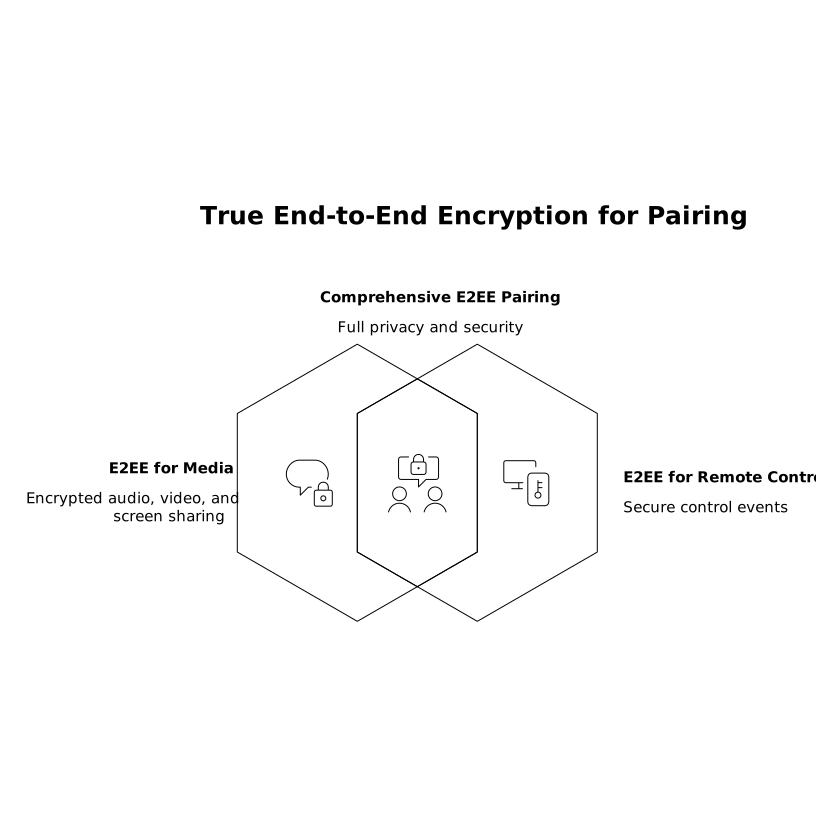
For teams that want a purpose-built pairing experience with E2EE screen sharing, crisp audio, and snappy remote control, tuple.app is designed specifically around that collaboration loop—without sending your audio, video, or screen content to the company’s servers.
2) Reduce what you expose before you share
E2EE prevents third-party access, but it doesn’t stop you from sharing the wrong thing. Adopt a “share-ready” routine that takes 30 seconds:
- Choose the smallest share surface: share a single window when possible, not an entire desktop.
- Turn on focus mode: silence notifications and close unrelated tabs.
- Use app hiding when you must share the full screen: some pairing tools include features to veil sensitive apps and notifications before sharing (use them by default).
- Have a “redaction plan”: keep secrets in a dedicated password manager window you never share, and keep production dashboards on a separate desktop/space.
The goal isn’t paranoia—it’s eliminating the easy mistakes that happen when you’re in flow.
3) Keep latency low enough to drive-and-navigate naturally
In pairing, latency isn’t just comfort; it changes how you collaborate. If remote control lags, you stop switching roles, and one person becomes a passive observer. A few practical tips:
- Prefer wired or strong Wi‑Fi: jitter harms “feel” more than raw bandwidth limits.
- Close bandwidth-heavy apps: cloud backups, large downloads, and video streaming can introduce spikes.
- Use a pairing tool optimized for this job: general-purpose meeting apps can work, but purpose-built pairing tools typically prioritize sharp text rendering and responsive control.
Look for features like high-resolution sharing (so code stays readable), low-latency control, and quick role swapping so you can switch who’s sharing without derailing the session.
4) Make remote control safe, not just fast
Remote control is powerful: it can also be disruptive if it’s not predictable. Teams get better outcomes when they standardize simple rules:
- Always ask before taking control: “Mind if I drive?” prevents surprise keystrokes.
- Use clear cues: tools that show who’s controlling (and allow instant revoke) reduce anxiety.
- Agree on roles: navigator talks; driver types. Then swap regularly.
When the mechanics are smooth, the session can stay about design decisions and debugging—not about fighting the tool.
5) Protect pairing sessions with lightweight operational habits
Security improves when it’s part of routine, not a special event. A few habits that fit real engineering calendars:
- Use calendar-based joining: starting from an invite reduces link-sprawl and accidental “wrong room” joins.
- Prefer short sessions over marathon calls: fewer hours shared means fewer opportunities for accidental exposure.
- Capture decisions immediately: pairing often produces architectural choices and follow-ups; write them down while context is fresh.
If you struggle with “we decided something in the call, then forgot,” adopt a lightweight decision log. The same mindset that keeps shipping predictable also keeps collaboration crisp—see this workflow for closing the meeting memory gap: Close the Meeting Memory Gap With a 5-Minute Workflow for Decisions Tasks and CRM Updates.
What to look for in a toolchain for encrypted pairing
If your current setup is “video meeting app + separate remote desktop tool,” you can still be secure, but you’ll have more moving parts to evaluate. When you’re selecting a tool for pair programming specifically, prioritize:
- E2EE for screen and audio with clear documentation of what servers can and can’t access.
- High-fidelity text rendering so code is sharp, not smeared.
- Low-latency remote control that encourages frequent driver swaps.
- Controls for privacy like hiding specific apps and notifications before sharing.
- Workflow features like one-click role swapping, annotations for pointing, and customizable shortcuts.
- Team integration such as Slack commands and calendar support, so pairing is effortless to start.
Tuple’s approach is intentionally narrow: it focuses on the pairing loop—razor-sharp screen sharing, crisp audio, and snappy remote control—with a small, native footprint and collaboration features that make it easy to switch roles and keep sessions engaging.
How to run a secure pairing session step by step
- Prep: close sensitive apps, enable do-not-disturb, and decide what window or monitor to share.
- Join: use your pairing tool’s invite, Slack command, or calendar entry so the right people enter the right session.
- Confirm scope: say out loud what you’re sharing (“Just the IDE window”) and what’s off-limits.
- Pair actively: swap driver/navigator every 10–15 minutes or at natural milestones.
- Record outcomes: capture decisions, next steps, and any follow-up PRs while you’re still in context.
When these steps are routine, you get the best part of remote pairing—speed and clarity—without quietly expanding your exposure surface.
Vertical Video
Frequently Asked Questions
Does Tuple use end-to-end encryption for pairing sessions?
Yes. Tuple is built around end-to-end encryption so your audio, video, and screen content are decrypted only on participants’ devices, not on Tuple’s servers.
Can end-to-end encryption stop my pair from recording my screen?
No. Even with Tuple’s end-to-end encryption, a participant can still record locally or take screenshots. E2EE prevents third parties (including vendors) from accessing the stream in transit, but you should still limit what you share.
What’s the safest way to share during a Tuple pair programming call?
In Tuple, the safest default is to share the smallest surface area you can (a single window when possible), silence notifications, and use privacy features like hiding sensitive apps before sharing full screen.
How do we keep remote control from turning into chaos in Tuple?
Set a simple norm: ask before taking control, swap roles deliberately, and use clear “driver vs navigator” language. Tuple’s low-latency control makes frequent, predictable handoffs feel natural.
Can external collaborators join Tuple without a paid seat?
Yes. Teams can invite external collaborators to pair in Tuple without requiring them to hold a paid seat, which is useful for interviews, client sessions, or open-source collaboration.